Create a Table of Contents
This topic describes how to provide a report with a table of contents that displays page numbers for bookmarked report elements at different nesting levels, and thus makes it possible to quickly navigate to a specific document page by clicking the corresponding entry.
To demonstrate this feature, use a report with specified bookmarks similar to the one created in the following tutorial: Create a Document Map with Bookmarks.
To create a table of contents in a report, do the following.
-
Drop the Table of Contents control from the Toolbox onto the Report Header Band. If the report does not contain this band, it will be created automatically.

-
Double-click the title of the table of contents and specify its text.

-
To customize title appearance, switch to the Properties Panel, expand the Behavior category and use the Level Title option’s settings.

-
To customize the appearance of all other levels, use the Level Default option’s settings in the Behavior category.

-
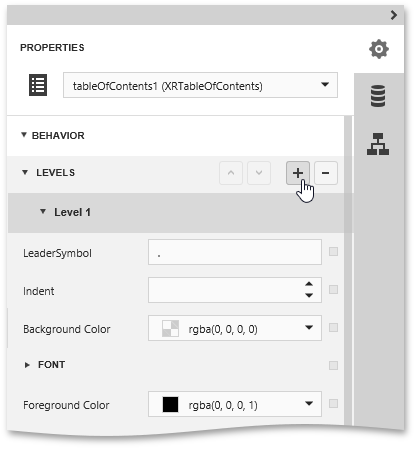
To customize a specific level individually, add a corresponding item to the Levels collection of the table of contents. After adding a new level, you can access and customize its properties.
The table of contents is now ready. Switch your report to the Preview mode and view the result.
