Data Explorer
This topic describes how to use the Data Explorer in Snap.
This topic consists of the following sections.
Overview
The Data Explorer is essential for managing data in Snap applications. It allows you to add new data sources to a Snap document, access their structure and run the Query Builder to customize a data source.
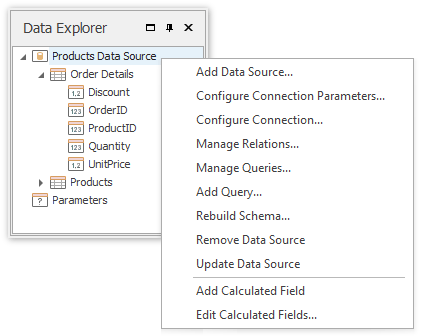
Using the Data Explorer, you can also manage a report’s parameters, as well as the calculated fields supplied to the data source tables.
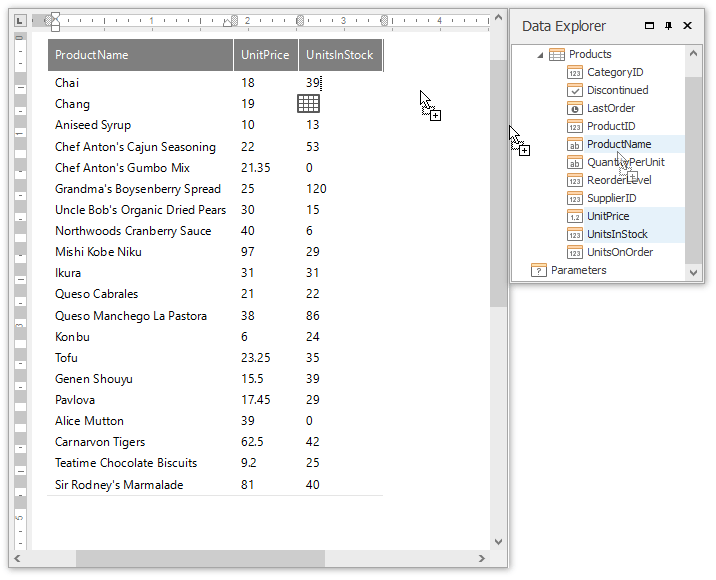
You can create a Snap report layout by dropping the data members from the Data Explorer onto a document’s design surface. The data members correspond to the columns created on the design surface, and the data member names are displayed in the column headers.
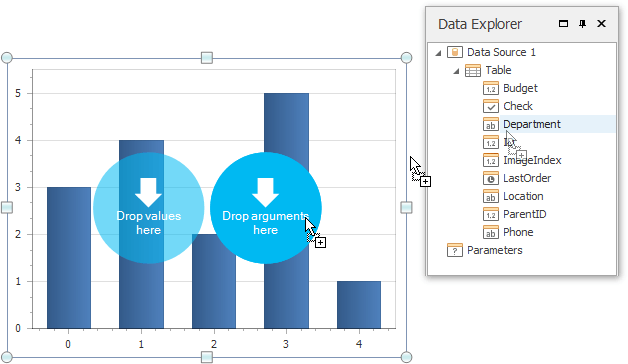
To display data in a chart, drop data fields from the Data Explorer onto the corresponding chart areas.
When a data field is added to your document, its data type determines what element is created (e.g., text, chart, or bar code).
Data Type Reference
In the Data Explorer, different icons are assigned to various data objects. These icons are explained in the following table.
| Regular Data Source | Mail Merge Data Source | Description |
|---|---|---|
 |
 |
Designates an individual data source. When expanded, shows the hierarchy of its tables and/or views. |
 |
 |
Designates a data table or view within a data source. When expanded, shows the hierarchy of its data fields. You can drag a data table and drop it onto the document surface, after which the entire table structure will be presented in the report in a tabular form. |
 |
|
Parameters. Lists the report parameters. You can include parameters in a document’s filtering expression or calculated fields, or you can use them directly in your reports, (e.g., by dropping them onto the document surface). |
For every table or view, the Data Explorer lists the available data fields. Depending on the data type, it will automatically assign one of the following icons.
| Regular Data Source | Mail Merge Data Source | Data Type | Displayed Contents |
|---|---|---|---|
 |
 |
Boolean | Check Box, plain text |
 |
 |
Byte | Bar Code, Picture |
 |
 |
Date-time | Plain text |
 |
 |
Numeric | Plain text, Bar Code |
 |
 |
String | Plain text, Bar Code |
 |
|
Calculated field | Determined by the result of the calculation. |