Use the Query Builder
This topic describes how to use the Query Builder to manage data tables and their relations in a Snap data model (e.g., to create master-detail data sources), filter incoming data and specify a custom SQL string.
The Query Builder displays the structure of a connected data source along with its associated Snap data model. When designing a report, this data model is reflected in the Data Explorer.
This topic includes the following sections.
Run the Query Builder
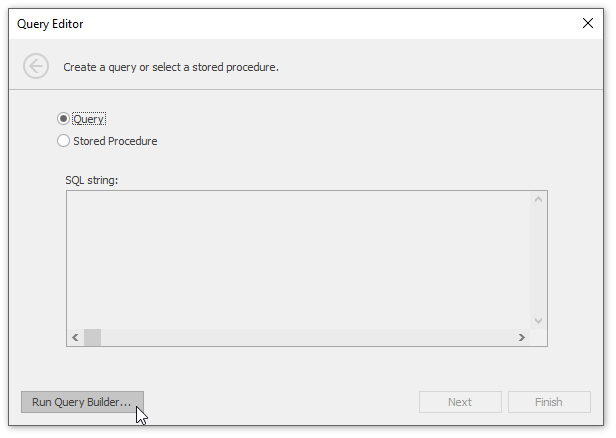
An option to invoke the Query Builder is provided on the last page of the Data Source Wizard. The Data Source Wizard is invoked at connecting a Snap document to a Data Source. Click the Run Query Builder… button to invoke the Query Builder window.
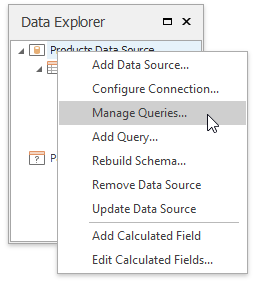
Alternatively, you can run the Query Builder by right-clicking a data source in the Data Explorer and selecting the Manage Queries… item in the invoked menu.
Manage Data Tables
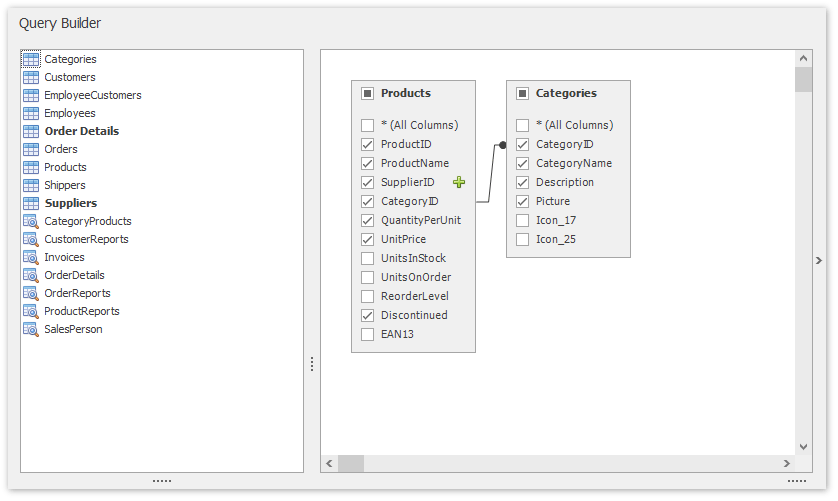
Double-click table names in the rightmost column to add them to the query being edited. To include a particular field in the query, enable the corresponding check box.
The Query Builder automatically highlights the tables of an external data source that are related to the tables of a Snap data model by one or more primary keys.
When the related table is added to the query being edited, the corresponding primary keys are automatically connected.
Shape Data
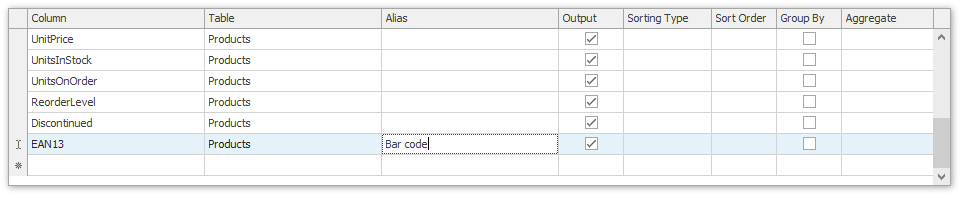
To assign a custom name to the selected data column, specify its Alias in the column list displayed in the lower part of the window.
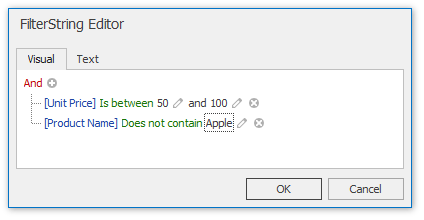
To specify the filter criteria applied to source data, click the Filter button, which invokes the Filter Editor.