Create a Mail-Merge Report
This tutorial illustrates the steps required to create and publish a mail merge report with Snap.
The tutorial contains following sections.
Add Dynamic Content
To create a Snap report using a document template, do the following.
- Add a new Snap document and provide it with a master-detail data connection.
-
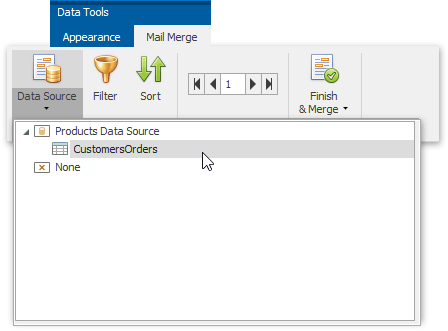
Next, specify which data source will be used for mail merge. To do this, click the Data Source button on the Data Tools: Mail Merge tab and select the required data source in the invoked drop-down list.
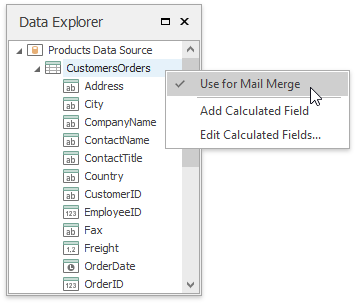
Alternatively, right-click the required data source in the Data Explorer and select Use For Mail Merge in the invoked drop-down menu.
-
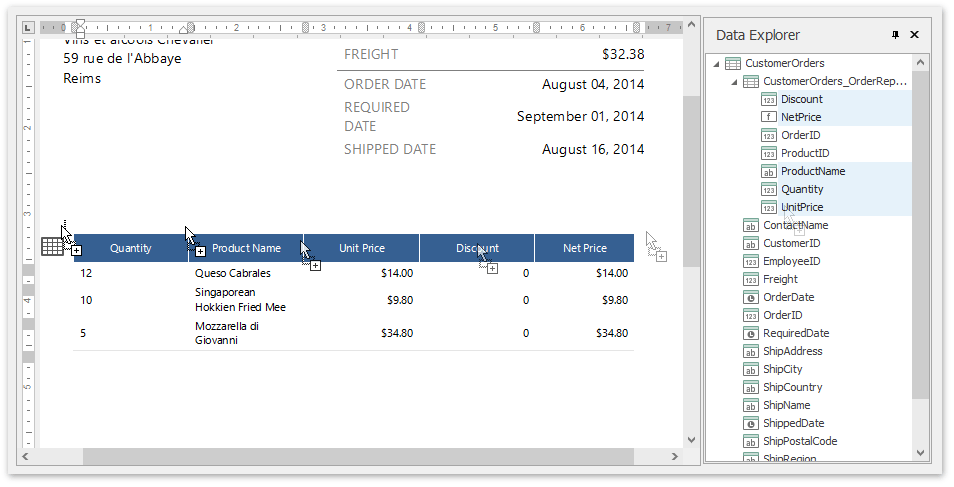
To insert data bound fields into the document, drag-and-drop data fields from the Data Explorer onto the Design Surface.
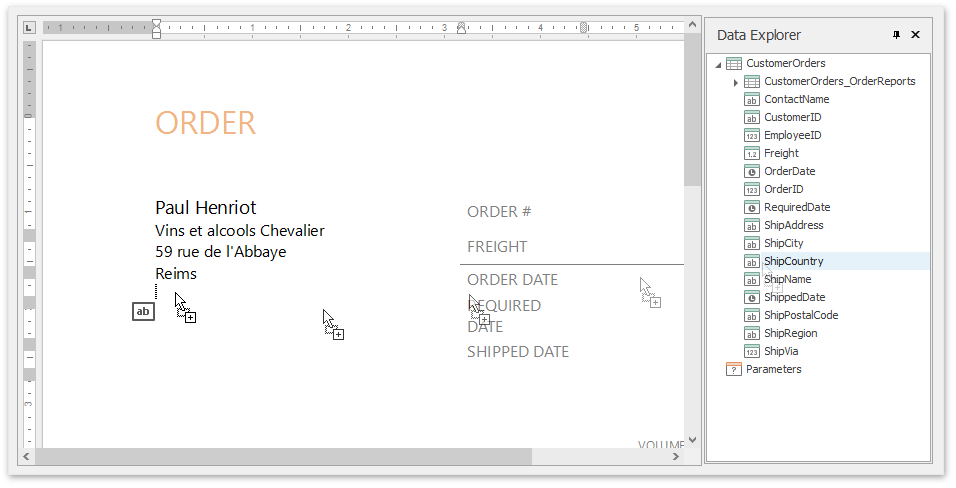
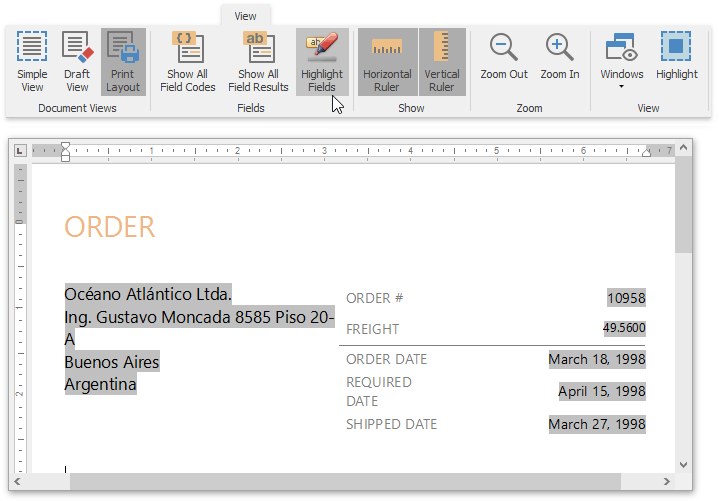
Activate the Highlight Fields option from the View tab of the main toolbar to highlight all mail merge fields in a document. This allows you to easily distinguish between dynamic and static content.
-
To insert a detail report section, drag-and-drop fields from a subordinate node of the data source. Fields of a nested level of a mail-merge data source are inserted into a template as columns of a table.
Preview and Publish the Document
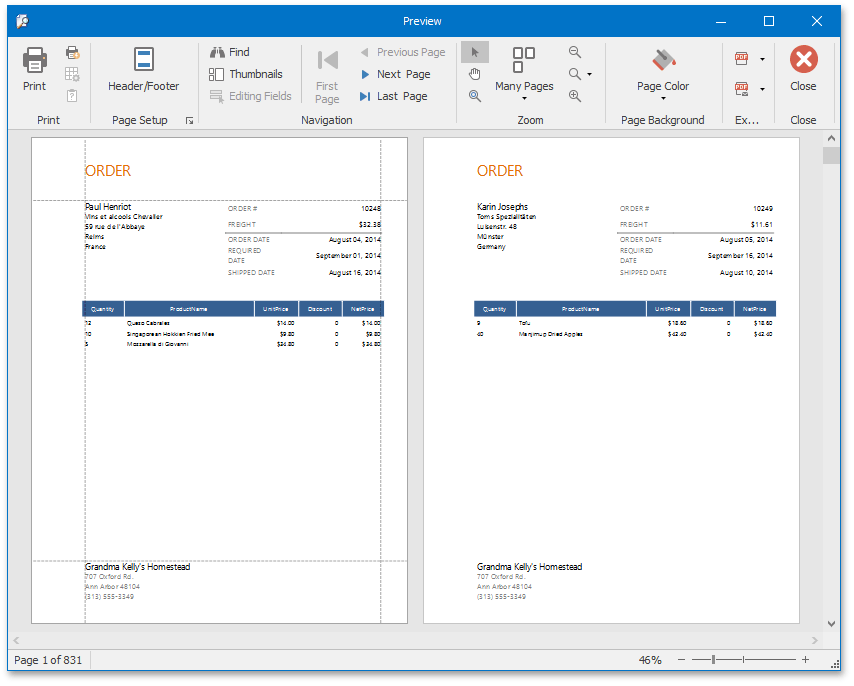
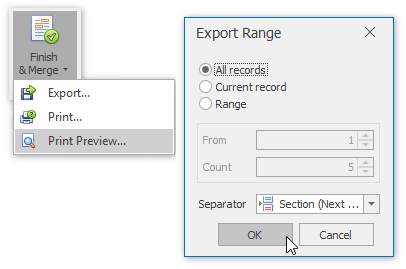
The Snap mail merge document is now ready. To view the result, click the Finish & Merge button in the Mail Merge tab, and select Print Preview… in the invoked drop-down menu. In the invoked Export Range dialog, select All records and click OK.
The following image illustrates a print preview for the final document.