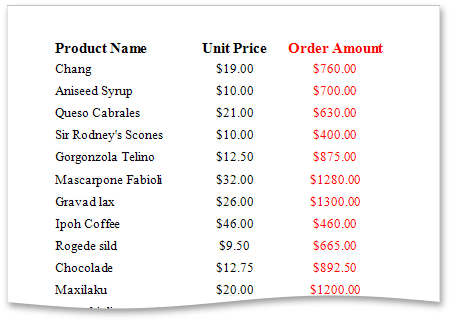
Calculated Fields
This document demonstrates how to add a calculated field to a report. The main purpose of calculated fields is to perform pre-calculations of virtually any level of complexity over data fields based on a specific expression.
In the Report Designer, a calculated field is similar to an ordinary data field (e.g., you can bind controls to it, and group, sort and filter your report against it).
To add a calculated field to your report, follow the instructions below.
-
To create a calculated field, in the Field List, right-click any item inside the data source, and in the invoked menu, select Add Calculated Field.

-
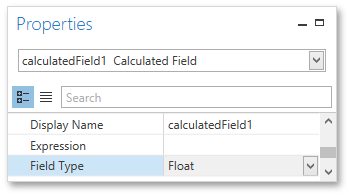
In the Field List, select the created field and switch to the Properties Panel. Make sure to change the Field Type property to an appropriate value.
-
Then, create an expression for the calculated field.
Click the ellipsis button for the Expression property to invoke the Expression Editor. You can also invoke this dialog by right-clicking the calculated field within the Field List and selecting Edit Expression…
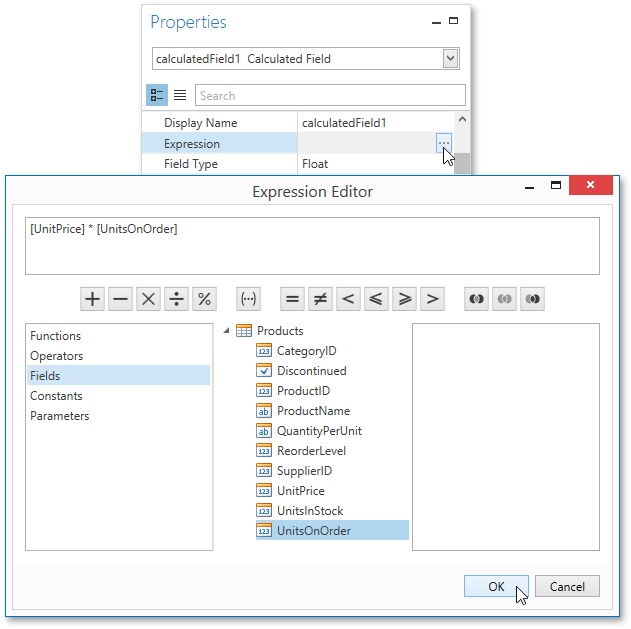
Click Fields to see the field list. To add a data field or report parameter to this expression, double-click the required name. A data field is inserted into the expression’s text using its name in [square brackets], and parameters are inserted using the “Parameters.” prefix before their names. Use the toolbar to add operators between field names.
To close the dialog and save the expression, click OK.
-
Finally, drag the calculated field from the Field List onto the required band like an ordinary data field.
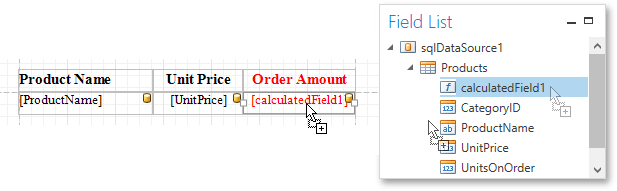
The report with a calculated field is now ready. Switch to the Print Preview tab and view the result.