Picture Box
Overview
The Picture Box control allows you to embed static (stored with the report) or dynamic (obtained from a data source) images into a report.
To add this control to a report, drag the Picture Box item from the Toolbox onto the report’s area.
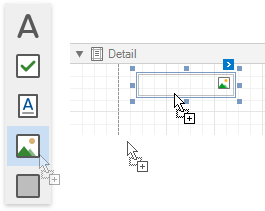
The Picture Box can display images with the following formats: BMP, JPG, JPEG, GIF, TIF, TIFF, PNG, ICO, DIB, RLE, JPE, JFIF, EMF, WMF.
Use the Image or Image URL property to specify the image the Picture Box displays. You can access these properties in the control’s smart tag.

The specified image is saved with the report if you use the Image property. If you use the Image URL property, only the path to the image is stored.
Bind to Data
You can use the Picture Box to display an image dynamically obtained from a data source. Click the control’s smart tag, expand the Image property’s Expression drop-down list and select the data field.
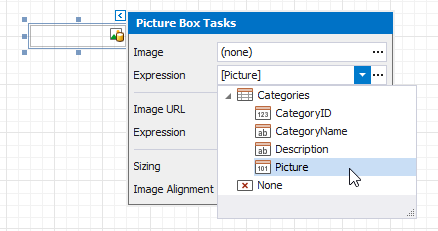
You can bind the Image URL property to data in the same way.
Click the Expression option’s ellipsis button to invoke the Expression Editor. This editor allows you to construct a complex binding expression with two or more data fields.
You can also drag and drop a field that contains image data from the Field List to create a new Picture Box bound to this field.
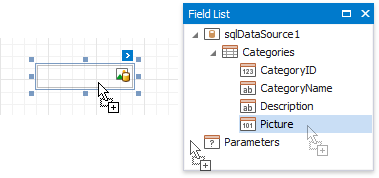
See the Bind Report Controls to Data topic for more information about how to create data-aware controls.
Image Size Modes
Use the Sizing property to specify an image’s position in the Picture Box.
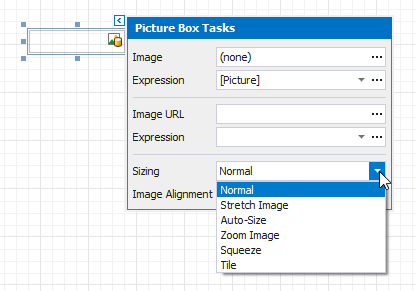
This control supports the following image size modes:
-
Normal
The image is displayed at the top left corner with its original dimensions. The image is clipped if it does not fit the control’s boundaries.

-
Stretch Image
The image is stretched or shrunk to fill the control’s width and height.

-
Auto Size
The control’s dimensions are adjusted to the image’s size.

-
Zoom Image
The image is resized proportionally without clipping it to fit the control dimensions.

-
Squeeze
The image is centered and shown full-size if the control dimensions exceed the image size. Otherwise, the image is resized to fit the control’s boundaries.

-
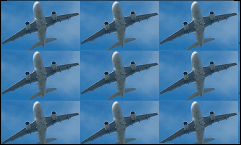
Tile
The original image is replicated within the control starting from the top left corner. The replicated image is clipped if it does not fit the control’s boundaries.
You can also use the Image Alignment property in the Normal, Squeeze and Zoom Image modes to specify the alignment in relation to the control’s boundaries.