Insert and Delete Hyperlinks
The Spreadsheet allows you to insert, edit and delete hyperlinks. A hyperlink is a link from a worksheet to another file or Web page that can be opened when you click the hyperlink text or image.
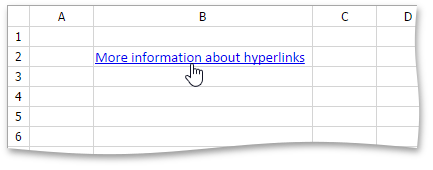
Insert a Hyperlink
- Click the cell in which you wish to insert a hyperlink.
- Do one of the following.
-
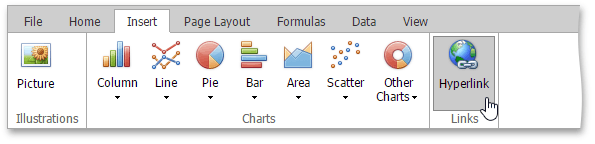
In the Links group within the Insert tab, click the Hyperlink button.
-
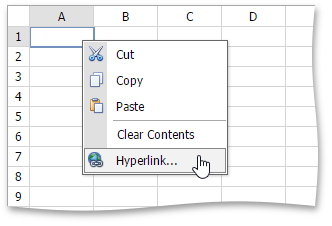
Right-click the cell and select Hyperlink… from the context menu.
-
-
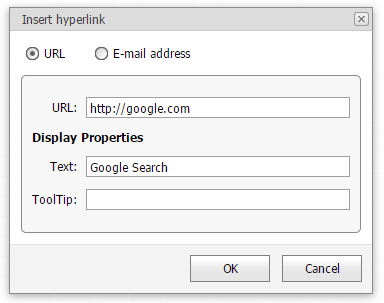
In the invoked Insert Hyperlink dialog box, select whether you wish to insert a hyperlink to a Web page or an email address. Depending on your choice, provide all the required options in the dialog box.
Delete a Hyperlink
- To delete a hyperlink along with its text, do one of the following.
-
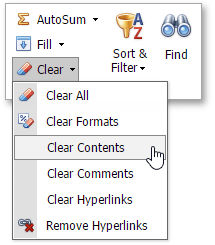
In the Editing group within the Home tab, click the Clear button, and select Clear Contents from the drop-down list.
-
Right-click the cell that contains the hyperlink and select Clear Contents from the invoked context menu.
-
-
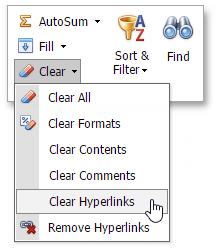
To delete a hyperlink while maintaining its text with hyperlink formatting, in the Editing group within the Home tab, click Clear, and select Clear Hyperlinks from the drop-down list.
- To delete a hyperlink while maintaining its text with default formatting, do one of the following.
-
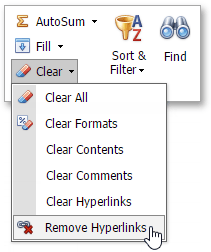
In the Editing group within the Home tab, click the Clear button, and select Remove Hyperlinks from the drop-down list.
-
Right-click the cell that contains the hyperlink and select Remove Hyperlinks from the invoked context menu.
-