Show and Hide Columns and Rows
The Spreadsheet provides the capability to display and hide columns and rows in a worksheet.
Hide and Unhide Columns
- Select the column to be hidden.
- Do one of the following.
- Set the column width to zero. To do this, drag the boundary of the column heading until the column is hidden.
-
On the Home tab, in the Cells group, click the Format button and select **Hide & Unhide Hide Columns**. 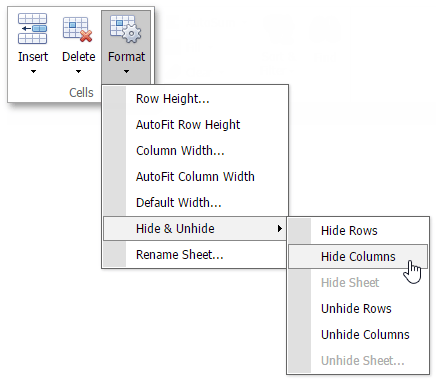
- Right-click the selected column and select the Hide Columns item from the context menu.
- To show the column you hid, select the columns adjoining either side of the hidden column, and then do one of the following.
-
On the Home tab, in the Cells group, click the Format button, and then select **Hide & Unhide Unhide Columns**. -
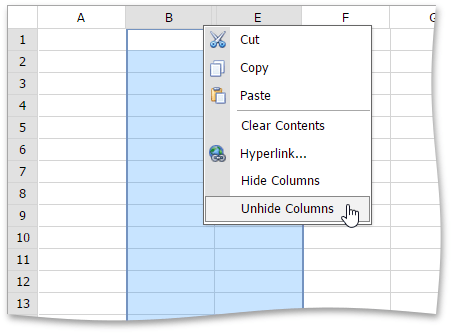
Right-click the selected columns and select the Unhide Columns item from the context menu.
-
Hide and Unhide Rows
- Select the row to be hidden.
- Do one of the following.
- Set the row height to zero. To do this, drag the boundary of the row heading until the row is not displayed.
-
On the Home tab, in the Cells group, click the Format button and select **Hide & Unhide Hide Rows**. 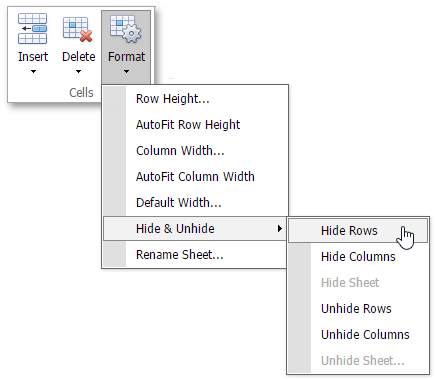
- Right-click the selected column and select the Hide Rows item from the context menu.
- To display the row you hid, select the rows that are above and below the hidden row, and then do one of the following.
-
On the Home tab, in the Cells group, click the Format button, and then select **Hide & Unhide Unhide Rows**. -
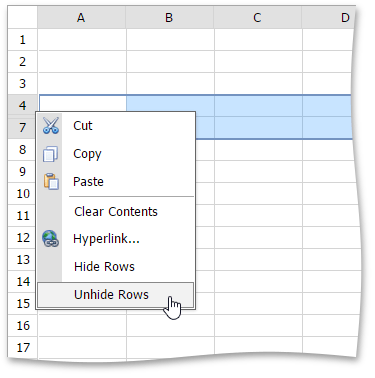
Right-click the selected rows and select the Unhide Rows item from the context menu.
-
Display all hidden columns and rows
- Press CTRL+A to select all rows and columns.
-
On the Home tab, in the Cells group, click the Format button, and then select **Hide & Unhide Unhide Rows** or Unhide Columns.