Create a Table
The Spreadsheet allows you to insert a new table in a worksheet, or convert an existing range to a table.
Create a Table
To insert a table, select the cell range to be included in the table.
Then, do one of the following.
-
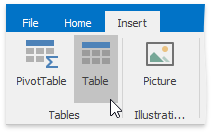
To create a table with the default style, on the Insert tab, in the Tables group, click the Insert Table button.
-
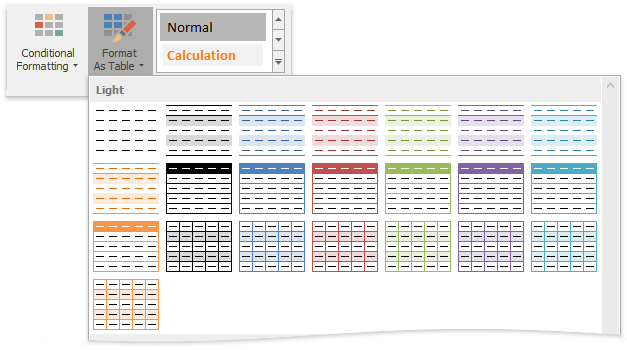
To create a table with one of the predefined styles, on the Home tab, in the Styles group, click the Format As Table button and select the desired style from the gallery.
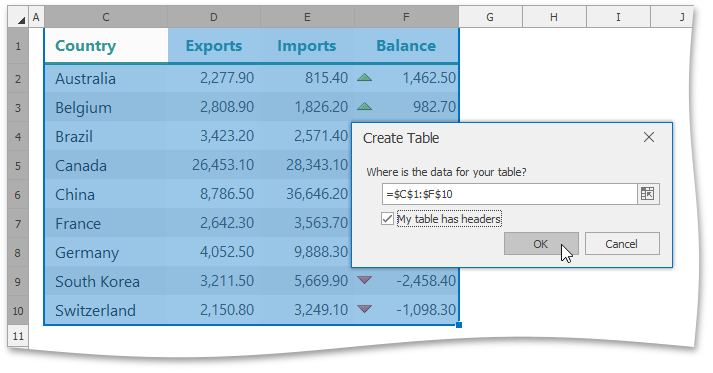
In the invoked Create Table dialog, verify that the range in the Where is the data for your table? field reflects your selection, and then specify whether or not the table has headers.
Note that after you create a table, the Table Tools contextual tab becomes available. Use this tab to provide some extra settings for the created table.
Convert a Table to a Data Range
To convert an existing table to a normal range of cells, do the following.
- Click the table to display the Table Tools contextual tab.
-
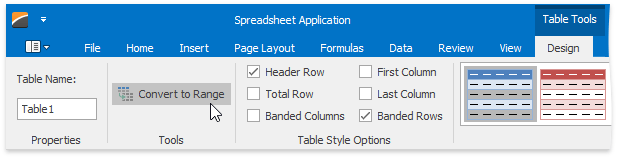
On the Design tab, in the Tools group, click the Convert To Range button.
Note that after you delete a table, the table formatting persists. However, the Table Tools contextual tab is no longer available, and table features are lost. For example, you cannot use structured references (references that use table names) in formulas.
Delete a Table
To delete an existing table, select it and do one of the following.
-
On the Home tab, in the Editing group, click Clear Clear All. 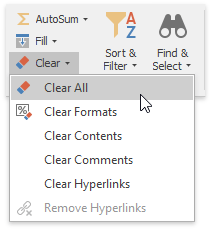
- Press DELETE.