Insert a Calculated Field and Calculated Item
If the predefined aggregation functions or the Show Values As calculation options do not meet your requirements, you can create your own formulas to calculate values in a PivotTable report by inserting calculated fields and calculated items.
Insert a Calculated Field
Calculated fields can perform calculations using the contents of other fields in the report. A calculated field’s formula should conform to the common syntax rules and contain only supported elements.
- In the formula, you can use constants and refer to other fields in the pivot table. The calculation will be performed on the sum of the underlying data for any fields in the formula. When you reference a field in your formula, you can enclose its name in apostrophes or omit them.
- You cannot create formulas that use a cell reference, defined name, circular references and arrays.
- The formula cannot refer to the PivotTable’s subtotals, totals and Grand Total value.
To insert a calculated field, do the following.
-
Select a cell within the PivotTable report and on PivotTable Tools Analyze tab, in the Calculation group, click the Fields, Items, & Sets button. In the drop-down menu, select the Calculated Field… item to invoke the Insert Calculated Field dialog. 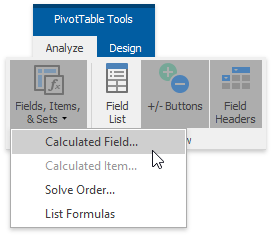
-
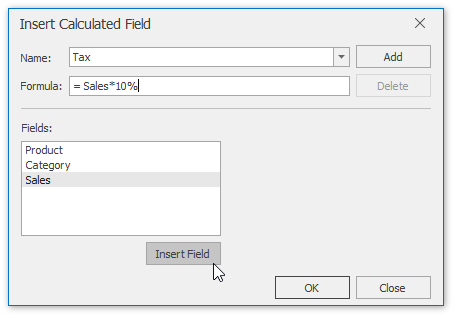
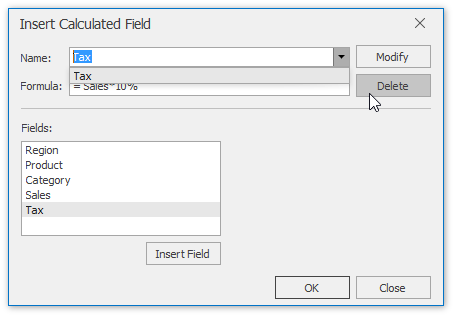
In the dialog window, specify the name and formula for the calculated field. To use data from another field in the formula, click the required field in the Fields box, and then click Insert Field.
-
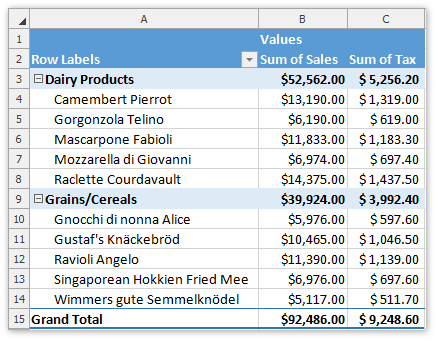
Click Add, and then click OK. As a result, the new field will be automatically added to the Values area of the PivotTable report.
-
To delete a calculated field, invoke the Insert Calculated Field dialog, select the required field from the Name drop-down list and click Delete.
Insert a Calculated Item
A calculated item is a custom item in a PivotTable field whose value is produced based on values of other items in the same field. Before inserting a calculated item, take into account the following restrictions.
- You cannot add a calculated item to a page field. Also, you cannot move a row or column field containing calculated items to the page area of the PivotTable report.
- You cannot add a calculated item to a grouped field. Ungroup the field before inserting the calculated item.
- You cannot add multiple copies of a field containing calculated items to the data area.
- You cannot add a calculated item to a PivotTable report that uses the Average, StdDev, StdDevp, Var or Varp aggregation function in the data area.
To insert a calculated item, follow the steps below.
-
Select a cell in the field to which the calculated item should be added. On the PivotTable Tools Analyze tab, in the Calculations group, click the Fields, Items, & Sets item and select the Calculated Item… item from the drop-down menu. 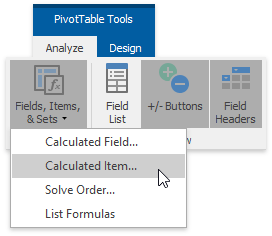
-
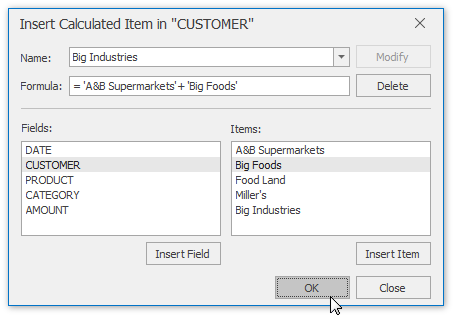
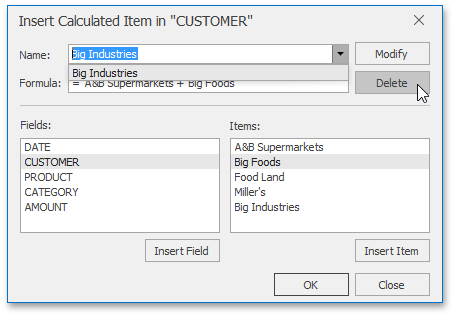
In the invoked Insert Calculated Item dialog, specify the name and formula for the calculated item. To use a value of another item in the formula, click the required item in the Items list, and then click Insert Item. Note that you can use only items from the same field as the calculated item.
-
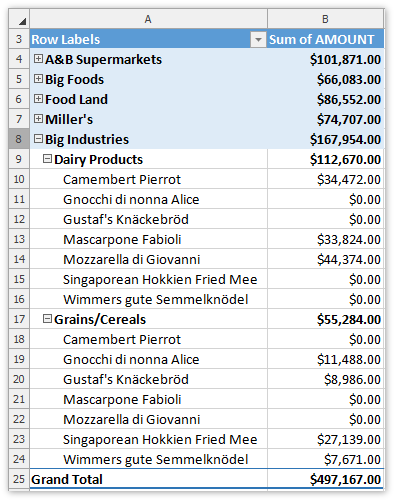
Click Add, and then click OK. As a result, the new item will be added to the field.
-
To delete a calculated item, invoke the Insert Calculated Item dialog, select the required item from the Name drop-down list and click Delete.
Create a List of the PivotTable Formulas
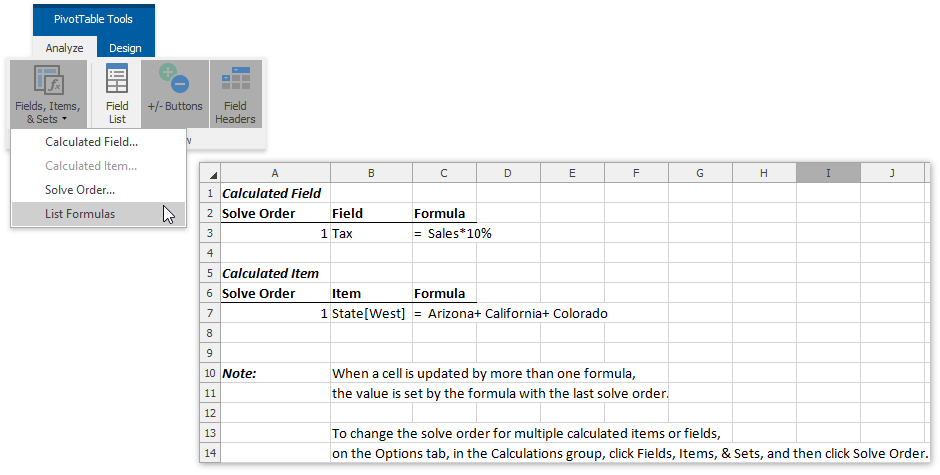
You can automatically create a list of all the calculated fields and items used in the current pivot table. To do that, on the PivotTable Tools | Analyze tab, in the Calculations group, click the Fields, Items, & Sets item and select the List Formulas item from the drop-down menu. As a result, the list will be created on a new worksheet and will appear as in the image below.