Edit Appointments
You can modify existing appointments in the following ways:
- using the appointment context menu
- using the built-in dialogs
- using the in-place editor
- via the Bar or Ribbon interface
- via keyboard shortcuts and mouse operations
[!NOTE] Access to some operations may be restricted.
Context Menu
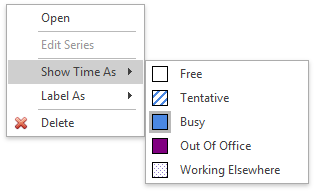
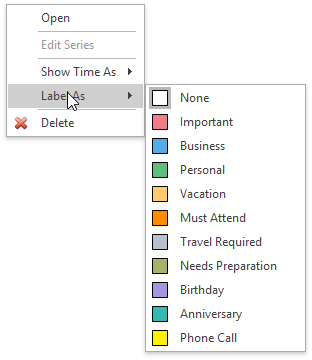
After an appointment has been right-clicked, the appointment context menu is invoked. The Show Time As and Label As items are used to alter an appointment. They allow for the changing of basic visual characteristics of an appointment - status and label.
| Change the appointment status | Change the appointment label |
|---|---|
 |
 |
Edit Appointment and Appointment Recurrence Dialogs
-
Edit a Simple Appointment
You can edit properties of a simple (non-recurring) appointment via the Edit Appointment dialog that can be invoked via the appointment context menu, Bar or Ribbon interface, keyboard shortcuts and mouse operations.
Context Menu Toolbar Ribbon Page Group Keyboard Shortcuts and Mouse Operations Invoked Edit Appointment Dialog 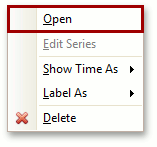
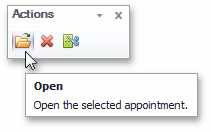
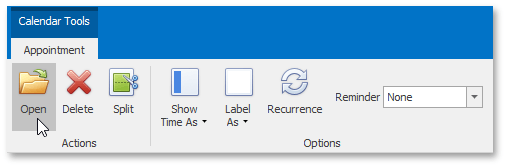
Double-click the appointment to be edited or select an appointment, and then press ENTER or CTRL-O. 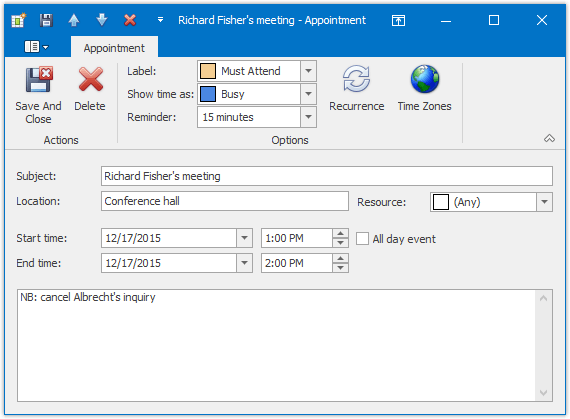
-
Edit a Particular Occurrence in a Series
The same dialog is used to edit a particular occurrence in the series of recurring appointments (recurring appointments are marked with a
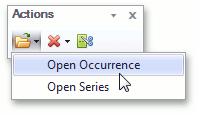
 sign). If you select a recurring appointment, and click Open in the appointment context menu or the Open Occurrence button on the Action toolbar or Ribbon page group, the Edit Appointment dialog is invoked to allow for the editing of the current appointment only, but not its entire series.
Context Menu Toolbar Ribbon Page Group Keyboard Shortcuts and Mouse Operations Invoked Edit Appointment Dialog 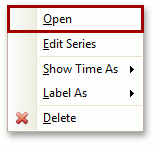
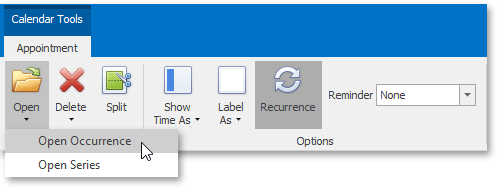
Double-click an appointment to be edited or select an appointment, and then press ENTER or CTRL-O. The appointment with changed properties still belongs to the series, but is marked with an “exception”. The visual indicator of an exception is the crossed recurrence sign
 . To replace an exceptional appointment with the regular occurrence in the chain of recurring appointments, click the Restore Default State item in the appointment’s context menu.
 -
Edit a Series of Recurring Appointments
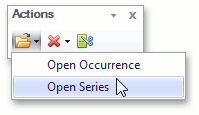
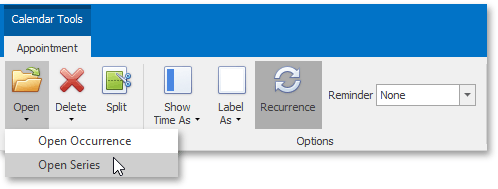
To edit an entire series of recurring appointments (a pattern appointment), it is necessary to select a recurring appointment, and click Edit Series in the appointment context menu or select the Open Series item from the Open drop-down list on the Actions toolbar or Ribbon page group. In this instance, the Edit Appointment dialog is shown with a different window icon. Time fields are inaccessible.
Context Menu Toolbar Ribbon Page Group Invoked Edit Appointment Dialog 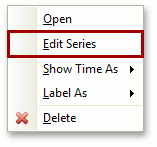
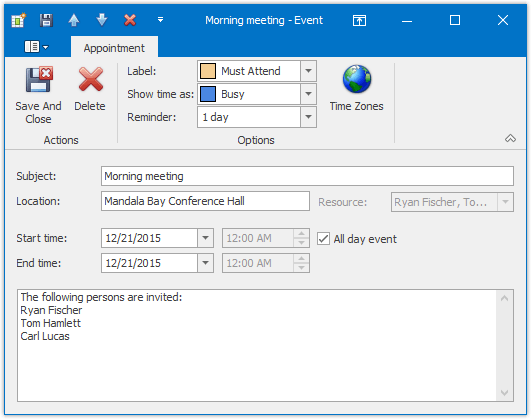
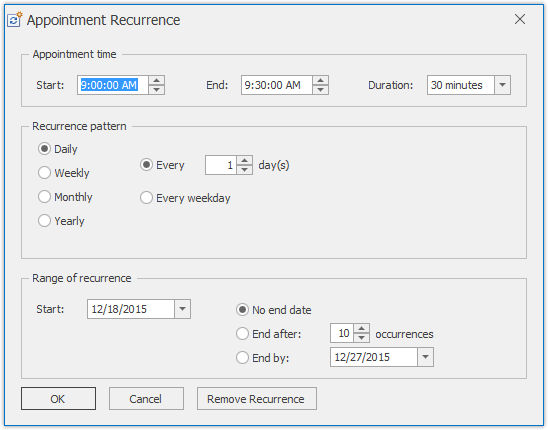
The recurrence pattern can be edited via the Appointment Recurrence dialog. You can invoke it by clicking the Recurrence button of the Edit Appointment dialog, or using the Recurrence button on the Options toolbar or Ribbon page group.
Edit Appointment Dialog Toolbar Ribbon Page Group Invoked Appointment Recurrence Dialog 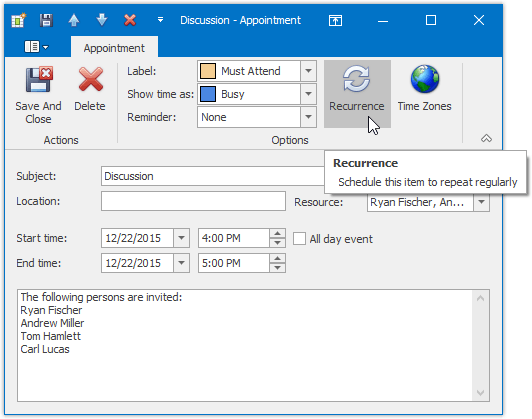
In-place Editing
A single mouse click within an appointment, or pressing F2, invokes the in-place editor, which you can use to edit the selected appointment’s Subject. It is illustrated in the following picture.
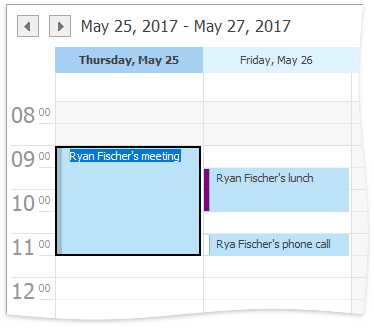
By default, you can close the editor by pressing Enter (to save modifications) or Escape (to cancel modifications).
Bar or Ribbon Interface
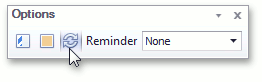
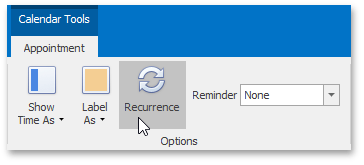
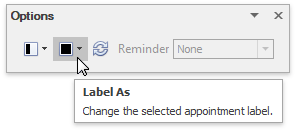
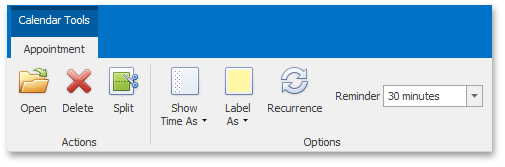
If a scheduler is provided with the Bar or Ribbon interface, you can modify appointment properties (status, label, recurrence and reminder) using the Options toolbar or Ribbon page group, which is active when an appointment is selected.
| Modify an appointment via the Bar interface | Modify an appointment via the Ribbon interface |
|---|---|
 |
 |
Keyboard Shortcuts and Mouse Operations
| Action | Description | |—|—| | Click an appointment | Selects an appointment. | | Right-click an appointment | Selects an appointment and invokes the context menu for the selected appointment. | | Click appointments while holding the CTRL key pressed | Enables you to select multiple appointments. | | ENTER or CTRL+O | Invokes the Edit Appointment dialog for the selected appointment. | | Double-click an appointment | Invokes the Edit Appointment dialog. | | F2 | Invokes the in-place editor to modify the selected appointment. | | Drag appointment edges | Resizes the rectangle representing an appointment. Results in changing its start/end times. | | Click and drag an appointment with the left mouse button | Moves the appointment across time cells, changing its Start time and End time properties. | | Click and drag an appointment with the right mouse button | Invokes the context menu allowing you to select between moving the appointment, copying it or canceling the operation. | | Press and hold the CTRL key, click and drag an appointment(s) with the left mouse button | Creates a copy of the selected appointment(s) when the mouse button is released. |