Insert a Page Break
Insert Page Break
You can insert a page break in your document anywhere you want. To do this, follow the steps below.
- Point to the position within a document where you want to insert a page break.
-
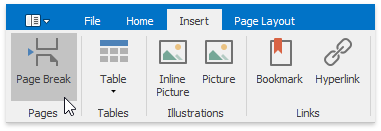
On the Insert tab, in the Pages group, click the Page break button …
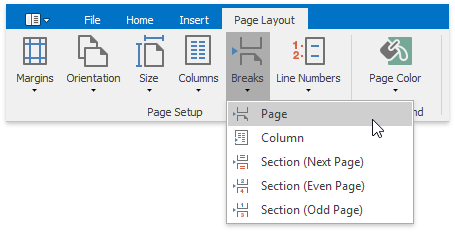
… or on the Page Layout tab, in the Page Setup group, click the Breaks button and select Page from the invoked list…
… or press CTRL+ENTER.
To show the page break mark, press CTRL+SHIFT+8 or on the Home tab, in the Paragraph group, click the Show/Hide button.

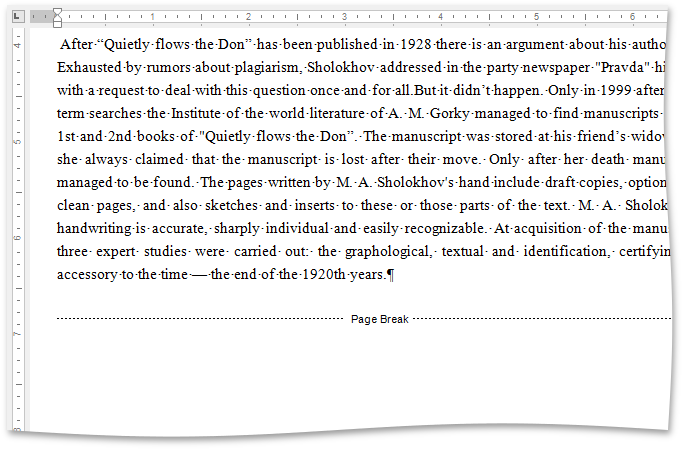
In a document, page breaks are marked as illustrated below.
Keyboard Shortcuts to Insert Breaks
You can use the following keyboard shortcuts to insert breaks of different types:
| Shortcut | Description |
|---|---|
| CTRL+SHIFT+ENTER | Inserts a column break in a document. |
| CTRL+SHIFT+SPACE | Inserts a non-breaking space. |
| CTRL+ENTER | Inserts a page break. |
| ENTER | Inserts a paragraph break. |
| SHIFT+ENTER | Inserts a line break. |
| TAB | Inserts a tab |