Divide a Documents into Sections
You can divide your document into sections to specify parts of a document that have different page settings (page margins, page orientation, paper size), column layouts, line numbering and headers and footers.
Insert Section Breaks
To divide a document into sections, insert section breaks.
- Click where you want to inset a section break within a document.
-
On the Page Layout tab, in the Page Setup group, click the Breaks button and select one of the following types of section breaks.
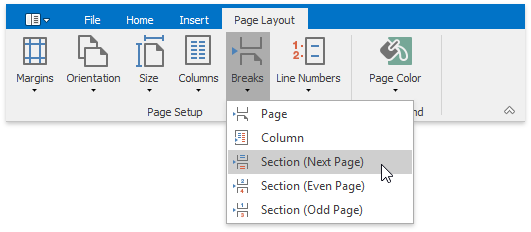
- Next Page - inserts a section break and starts a new section on the next page.
- Even Page - inserts a section break and starts a new section on the next even-numbered page.
- Odd Page - inserts a section break and starts a new section on the next odd-numbered page.
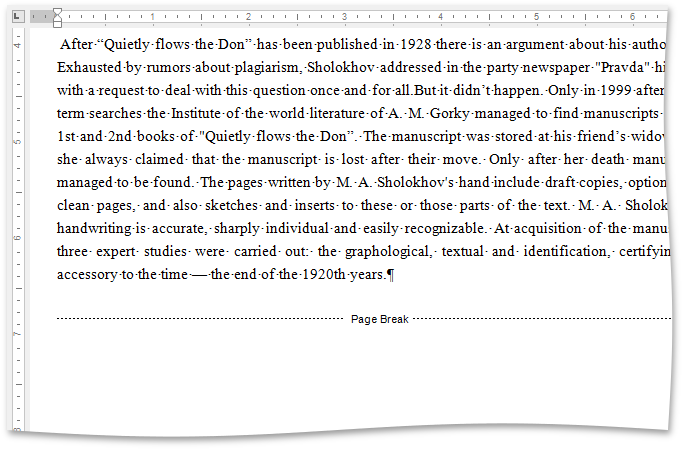
To show the section break mark, press CTRL+SHIFT+8 or on the Home tab, in the Paragraph group, click the Show/Hide Parapragh button.

In a document, section breaks are marked as illustrated below.
Change Section Break Type
You can change the type of the section break that has been inserted to start a section. To do this, follow the instructions below.
- Click the section following the section break that you wish to change.
-
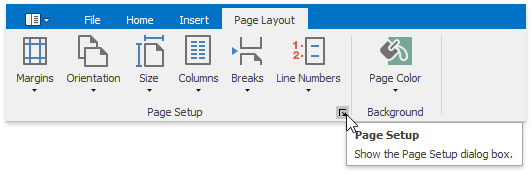
Invoke the Page Setup dialog by clicking the dialog box launcher.
-
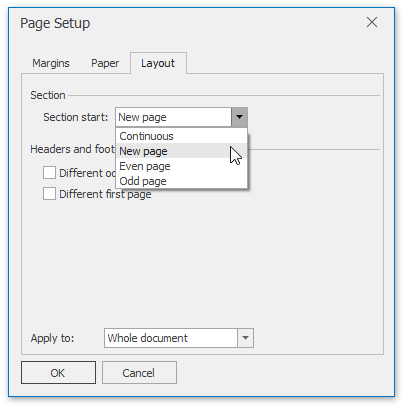
Сhange the Section start property on the Layout tab as required.