Formatting Data
This topic describes how to change value formatting of report elements in the Report Designer. For instance, you can format a numeric value as a currency, display a date/time value in one of the standard forms depending on the culture, etc.
To apply value formatting for a data-bound control’s content, do the following.
-
Right-click the control, and select Edit… in the context menu. In the invoked dialog, click the ellipsis button for the Format String property.
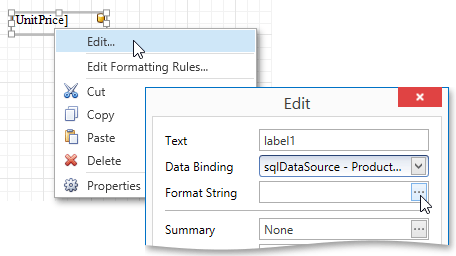
-
In the invoked Format String Editor, select one of the predefined standard formats or specify a custom one.
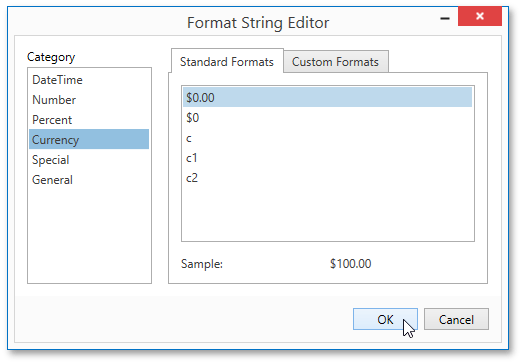
To quit the dialog and apply the changes, click OK.
In a similar way, you can apply formatting to a control’s Bookmark, Navigation URL and Tag properties using the Properties Panel. Note that the set of bindable properties depends on the control type.
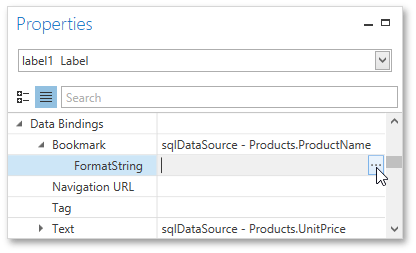
When a summary function is applied to a control’s dynamic content, value formatting is specified separately as described in the Calculating Summaries document.
Independently from general and summary value formatting, you can specify a native XSLX format string, which is preserved when the report is exported to XLSX. You can do this using a control’s Xlsx Format String property.