Add Bar Codes to a Report
Overview
To insert a bar code into a report, drag the Bar Code item from the Toolbox onto the report’s area.

After creating the bar code, select the bar code type (symbology) in the Bar Code Tools toolbar tab’s Symbology gallery.

After specifying the symbology, you can customize the type-specific options of the bar code, which are listed in the Property Grid under the Symbology property.
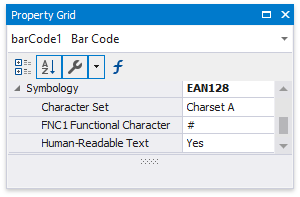
Main Options
You can use the Binary Data property to supply the data that a bar code should encode.
To specify the bar width (a bar code’s resolution), use the following options:
- Automatically calculate the bar width according to a bar code’s dimensions by enabling the Auto Module option;
- Provide a fixed bar width value using the Module property.
The following are some additional bar code options:
-
Use the bar code’s Text property to provide accompanying text. The Show Text property allows you to show or hide this text.
-
Use the Orientation property to rotate a bar code.
-
Use the Padding property to specify the indent between bars and the bar code’s inner boundaries.
Bind to Data
You can bind the bar code’s Text property to a data field obtained from a report’s data source. Click the control’s smart tag, expand the Expression drop-down list and select the data field.
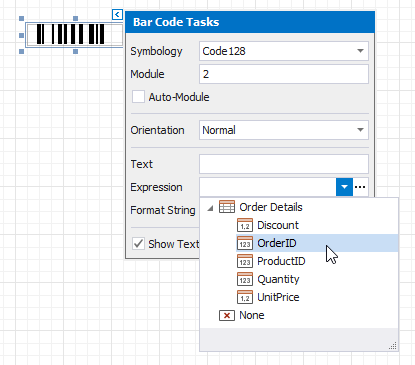
You can also click the Expression option’s ellipsis button to invoke the Expression Editor. This editor allows you to construct a complex binding expression with two or more data fields.
Common Errors
The following section explains how to work around the most frequently encountered errors related to the incorrect use of bar codes.
-
The following error message is shown in place of the bar code if the control’s dimensions are too small to fit the bar code with its specified resolution.
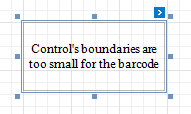
To get rid of this error, enable the Auto Module property and/or increase the bar code’s dimensions.
-
The following error message appears when the data supplied to a bar code contains characters that are not supported by this bar code type.
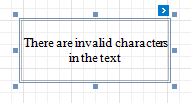
To avoid this error, supply data that applies to a particular bar code specification.