Conditionally Change a Label’s Text
This document describes how to display different values in a report control based on a specified logical condition.
[!Warning] Use the approach below if expression bindings are enabled in the Report Designer (the Property Grid provides the Expressions
tab ).
See Conditionally Change a Label’s Text if expression bindings are not enabled in the Report Designer (the Property Grid does not provide the Expressions
After you bound your report to data and specified a bound data field in a report control’s Expression property, you can make this control display different values based on a specified logical condition:
-
Invoke the control’s smart tag and click its Expression property’s ellipsis button.

-
In the invoked Expression Editor, specify the required expression.
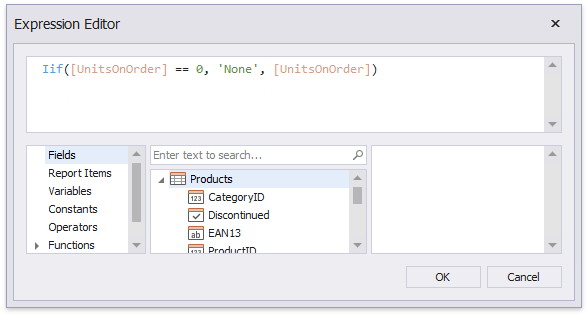
Use the Iif function to define the condition. For example:
Iif([UnitsOnOrder] == 0, ‘None’, [UnitsOnOrder])
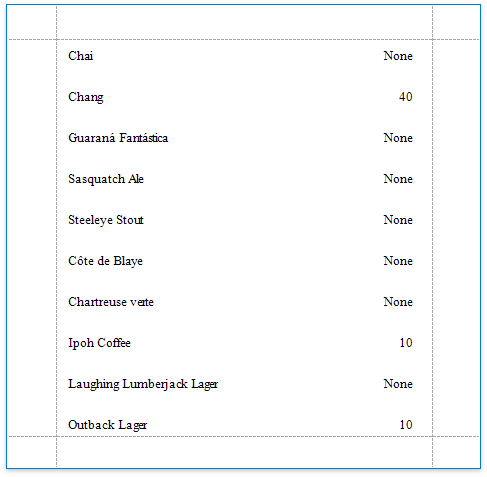
This expression means that if the data field’s value is zero, the control’s text is set to ‘None’; otherwise, it displays the actual field value.
When switching to Print Preview, you can see the report control displaying the assigned values.