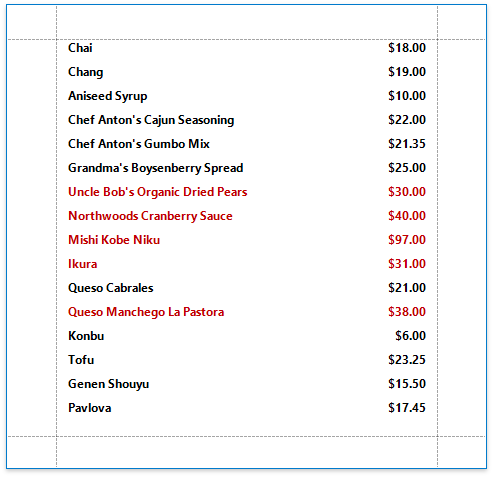
Conditionally Change a Control’s Appearance
This document describes how to change a report control’s appearance based on a specific condition.
[!Warning] Use the approach below if expression bindings are enabled in the Report Designer (the Property Grid provides the Expressions
tab ).
See Conditionally Change a Control’s Appearance if expression bindings are not enabled in the Report Designer (the Property Grid does not provide the Expressions
-
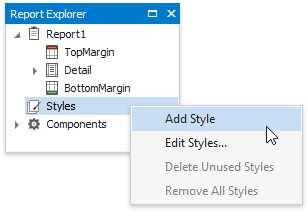
Switch to the Report Explorer and right-click the Styles category to create a new visual style.
-
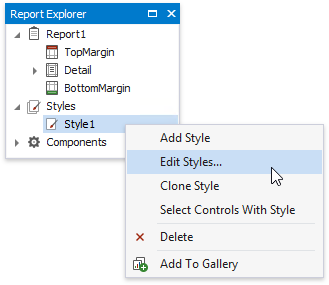
Right-click the created style and select Edit Styles.
-
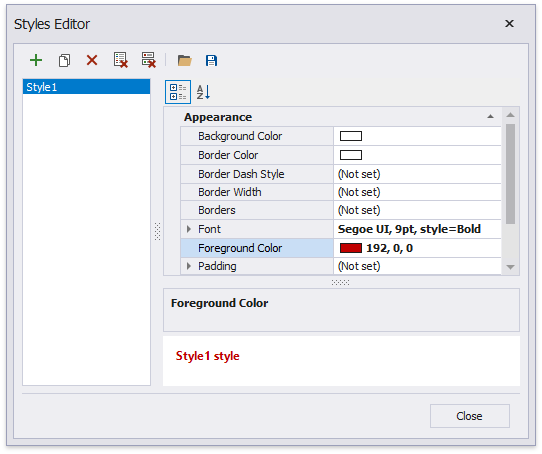
In the invoked Styles Editor, customize the created style’s appearance settings.
-
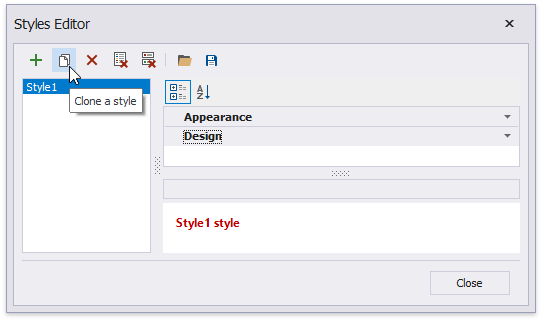
Create another style by cloning the existing one.
-
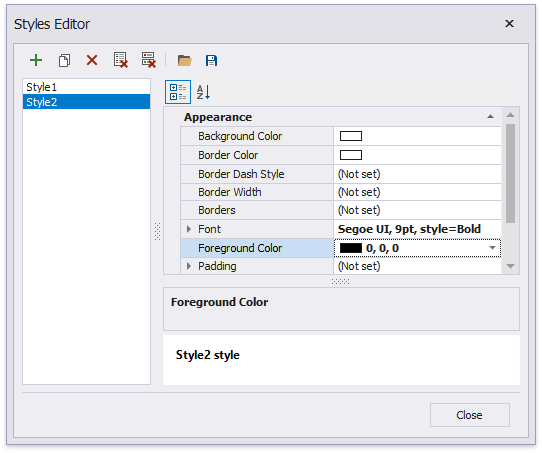
Customize the new style’s appearance settings and close the editor.
-
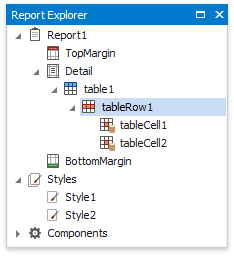
Back in the Report Explorer, select a report element to which you wish to assign the created styles.
-
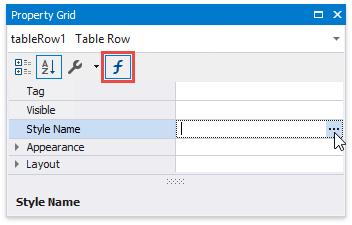
Switch to the Expressions section in the Property Grid and click the ellipsis button for the control’s Style Name property.
-
In the invoked Expression Editor, specify the required condition for switching between the created styles.

Switch to Print Preview to view the resulting report.