Calculate a Summary
This tutorial describes the steps required to calculate one of the built-in summary functions in your report.
[!Warning] Use the approach below if expression bindings are not enabled in the Report Designer (the Property Grid does not provide the Expressions
tab ).
See Calculate a Summary if expression bindings are enabled in the Report Designer (the Property Grid provides the Expressions
-
Create a new report or open an existing one and bind it to a data source.
-
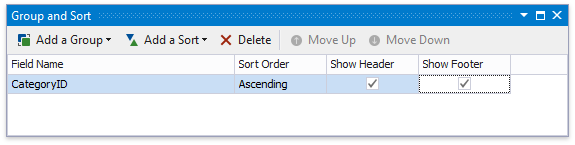
Switch to the Group and Sort panel and group the report’s data by the required field. Display the footer for the created group.
-
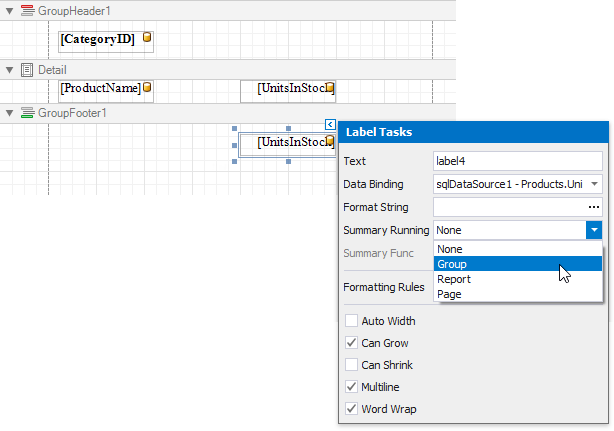
Prepare the report layout and drop a required data field onto the group footer to display the summary result.
-
Click the label’s smart tag and invoke its Summary Running drop-down list. Select the range for which to calculate a summary (the entire report, a specific report group or document page).
-
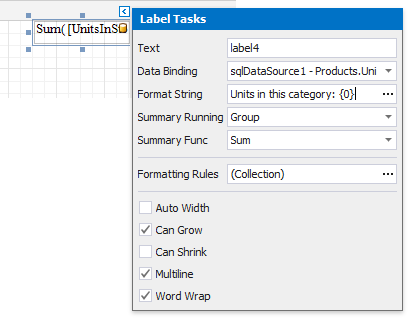
Set the Summary Func property to Sum and use the Format String property to format the summary’s value.
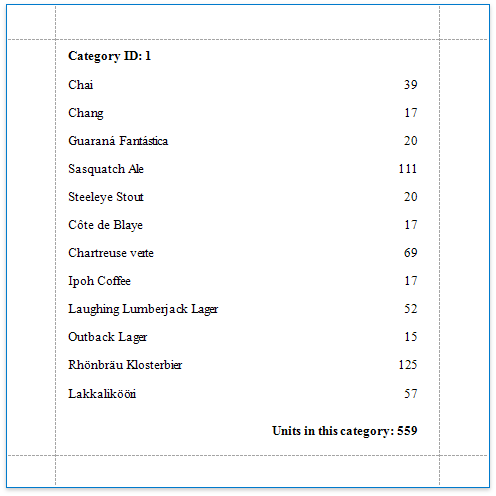
Switch to Print Preview to see the result.