Introduction to Banded Reports
Banded reports provide a generalized report layout notion. When you preview a banded report, a report document is generated based on the report layout and data source.
Report Bands
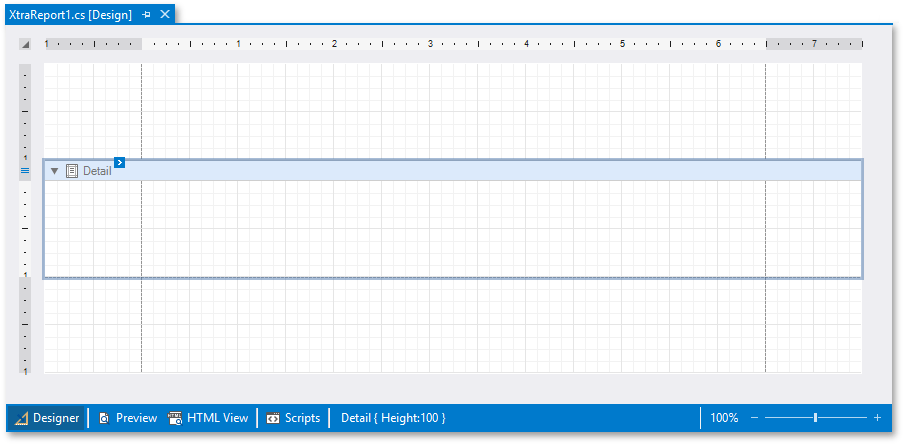
A report layout consists of bands that contain report controls and define their location on document pages. A blank report contains the following bands:
-
The Detail Band displays recurring contents from the report’s data source. This band is printed as many times as there are records available in a data source unless you filtered the data.
Every report must have a detail band, and you cannot delete it.
-
The top and bottom page Margin bands. These bands are repeated once on every document page.
You can also add the following bands:
-
Report Header and Report Footer
The Report Header is the report’s first band (margins are “out-of-page” zones). Use this band to display the report’s name, company logo, date of creation, username, etc.
The Report Footer is placed before the Page Footer and Bottom Margin on the report’s last page. You can use the Report Footer band for report summaries or conclusions.
-
Page Header and Page Footer
These bands are at the top and bottom of every page in a report. They display information that should be printed on every page.
-
Group Header and Group Footer
These bands are above and below each group. The Group and Sort Panel create these bands automatically.
[!TIP] Only the detail and group bands can be used to display dynamic data source contents. Other bands display titles, summaries, and extra information.
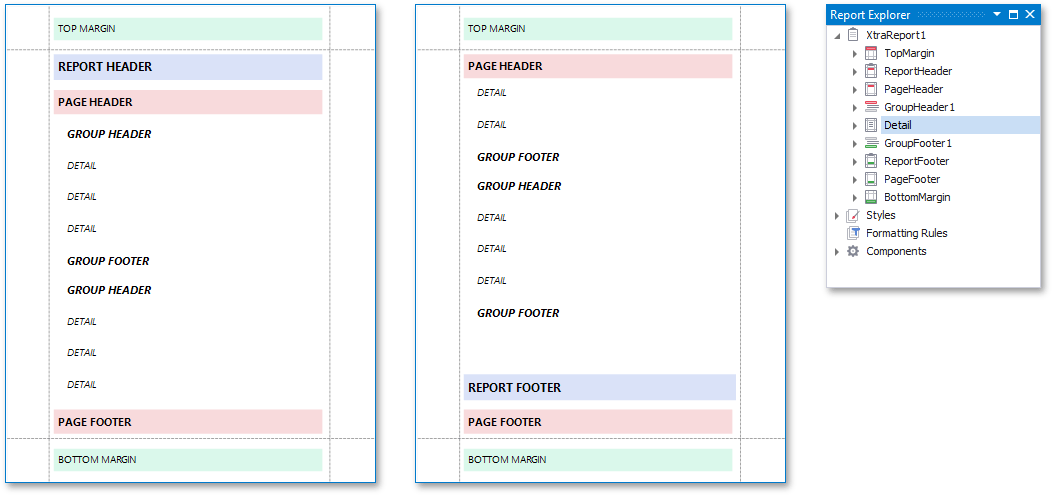
The following image illustrates a sample report layout and the Report Explorer that reflects the report’s structure:
Add a Detail Band to a Master-Detail Band
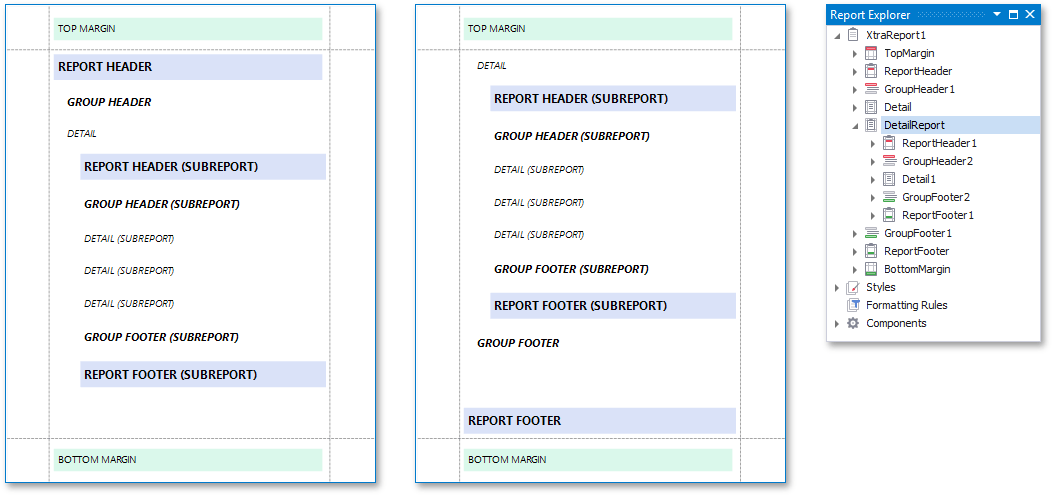
Use the detail report band to create hierarchical master-detail reports. Detail report bands provide detailed information about each record in the master report’s detail band (for example, orders shipped to each customer). You can create such reports when master-detail relationships are defined between data source tables:
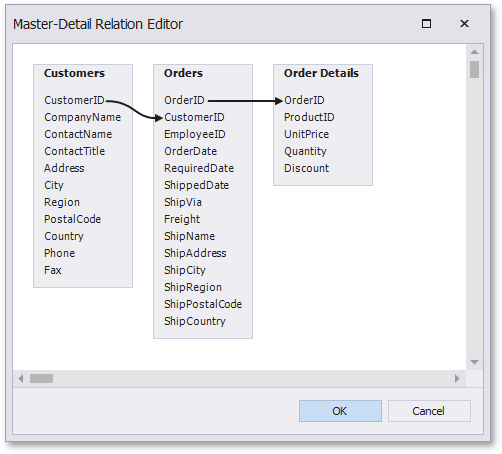
A detail report band is a separate report (subreport) with its own data source and different bands. A report can have any number of detail reports that can also be nested.
The following image illustrates a master-detail report and the Report Explorer that reflects the report’s structure:
Create Band Copies
You can create functional copies of a band, for example, to display different contents based on a specific condition. To do this, add sub-bands to bands.
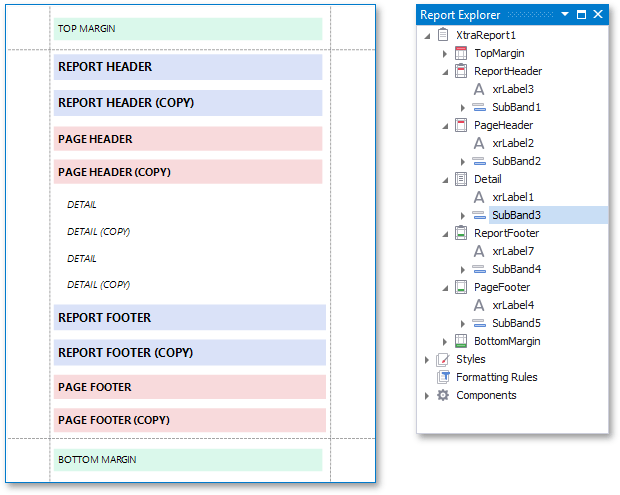
[!TIP] See Laying out Dynamic Report Contents for details on how to specify the location of bands’ content on document pages.
Manage Report Bands
Hide Bands in the Report Designer
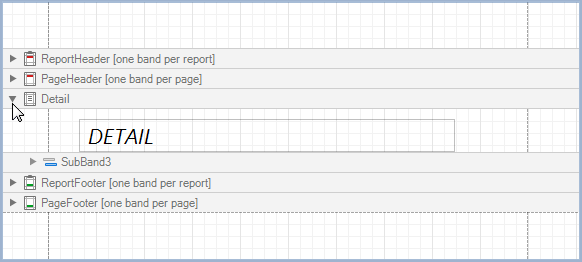
Click the arrow button on the band’s title to collapse or expand the band.
Hide Bands in the Report Document
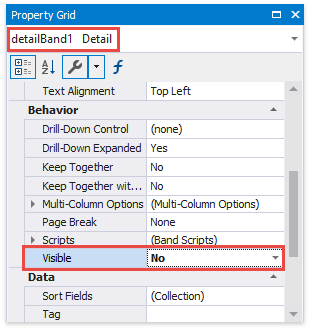
You can avoid printing a band’s content in a document. To do this, set the band’s Height property to a zero or its Visible property to false. Select the band and set these properties in the Property Grid.
Remove Bands
Select a band on the report design surface and press DELETE. This removes the band and all its content.
Add Bands
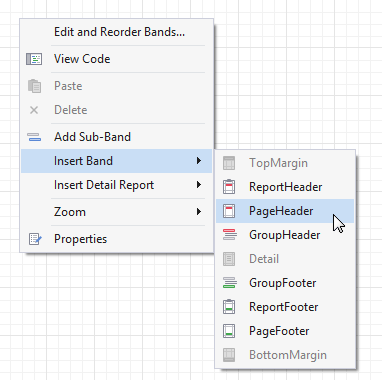
To add a band, right-click a report’s design surface, and in the invoked context menu, choose Insert Band.
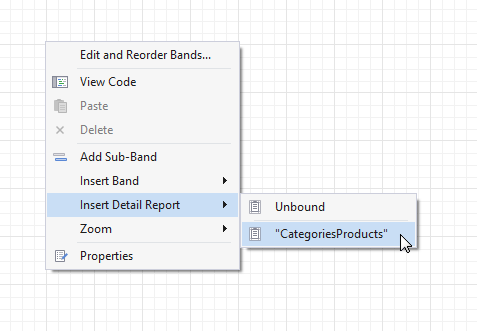
You can insert a detail report band if the report’s data source has master-detail relations.
Access the Bands Collection
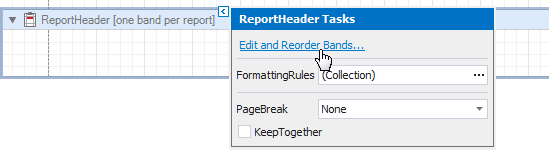
Click the Edit and Reorder Bands context link in a report’s smart tag to access the report’s bands collection.
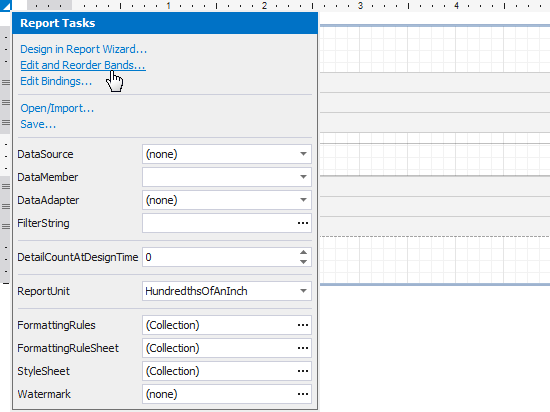
This command is also available in a band’s context and smart tag menus.