Binding to CSV Files
The Dashboard Designer allows you to select data from CSV files.
To bind a dashboard to a CSV file, do the following.
-
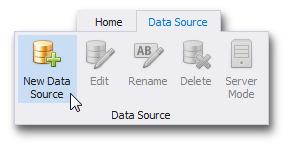
Click the New Data Source button in the Data Source ribbon tab.
-
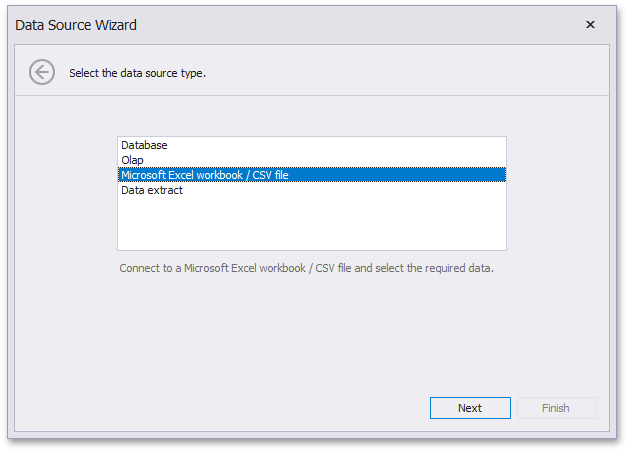
On the first page of the invoked Data Source Wizard dialog, select the Microsoft Excel workbook / CSV file and click Next.
-
On the next page, locate the required CSV file by clicking the ellipsis button and selecting the file.
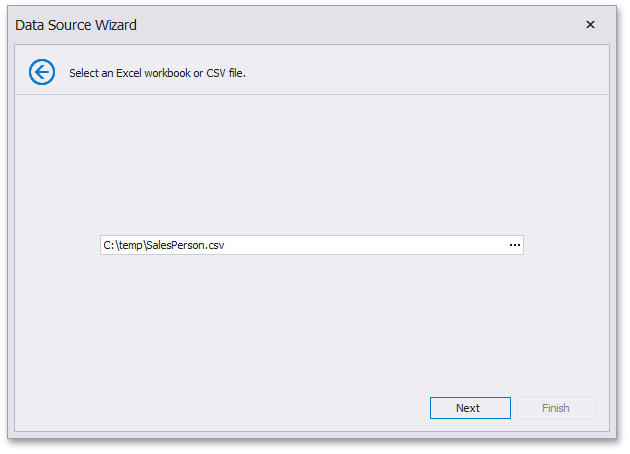
Click Next.
-
Then, specify import settings used to extract data from the CSV file.
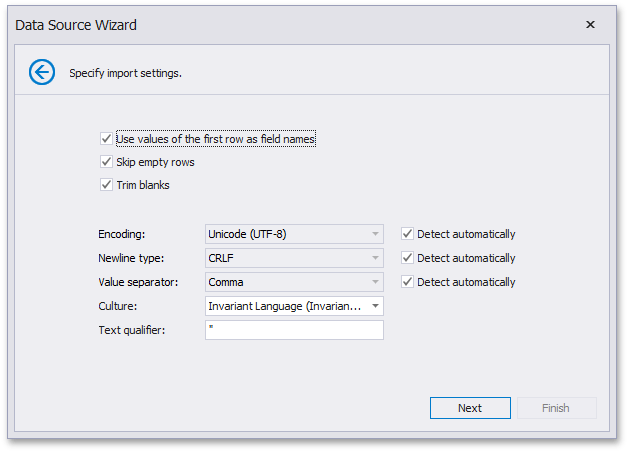
The following options can be specified.
- Use values of the first row as field names - Specifies whether to use the values of the first row as field names. If you disable this option, field names will be generated automatically.
- Skip empty rows - Specifies whether or not to include the empty rows into the resulting data source.
- Trim Blanks - Specifies whether to remove all leading and trailing white-space characters from each value in the CSV document.
- Encoding - Specifies the character encoding of the CSV document. You can use the Detect automatically option to specify whether character encoding is automatically determined.
- Newline type - Specifies the character used to identify a new line in a CSV document. You can use the Detect automatically option to specify whether the character used to identify a new line is automatically determined.
- Value separator - Specifies a character used to separate values in a CSV document. You can use the Detect automatically option to specify whether the character used to separate values in a CSV document is determined automatically.
- Culture - Specifies the culture information used to parse the data being imported.
- Text Qualifier - Specifies the character that encloses values in the CSV document.
Click Next.
-
On the final page, you can select columns to be included to a data source and specify their settings. The Name column allows you to specify the column name while Type allows you to specify its type.
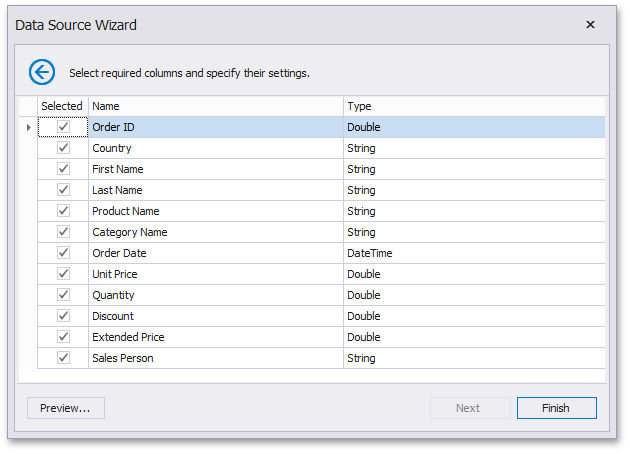
Click Finish to create a data source. This creates the data source and displays its fields in the Data Source Browser.